
Help Databases and objects
Views
A view is a stored SELECT that you can query like a table. bonSQL writes views as SQL: it opens an editor
tab with a statement for you to complete or change, and you run it like any other query.
The view commands are under Others > Views, and on the menu you get by right-clicking a database’s Views folder or a view in the Object Browser. With the Views folder or a view selected, F4, F6, F2 and Del act on views.
Creating a view
Select the database, then choose Others > Views > Create View… (F4) or Database > Create > View….
Type a name in Enter new view name and click Create. If a table or view of that name already exists, bonSQL says so and lets you choose another.
A new editor tab opens, named after the view, with a skeleton:
CREATE
    /*[ALGORITHM = {UNDEFINED | MERGE | TEMPTABLE}]
    [DEFINER = { user | CURRENT_USER }]
    [SQL SECURITY { DEFINER | INVOKER }]*/
    VIEW `shop`.`recent_orders`
    AS
(SELECT * FROM ...);
Replace
(SELECT * FROM ...)with your query. The options in the comment are optional; to use one, move it out of the comment.Press F9, or click Execute query on the toolbar.
The Messages tab shows whether the server accepted the statement. If the new view does not appear in the Object Browser, press F5.
Running the editor tab
In an object editor tab, F9, Ctrl+F9 and the toolbar’s Execute query button all run the whole tab, from the first line to the last. F8 (execute and edit the result) is not available there. In SQLyog Community the Execute button was greyed out in these tabs; in bonSQL it works.
Changing a view
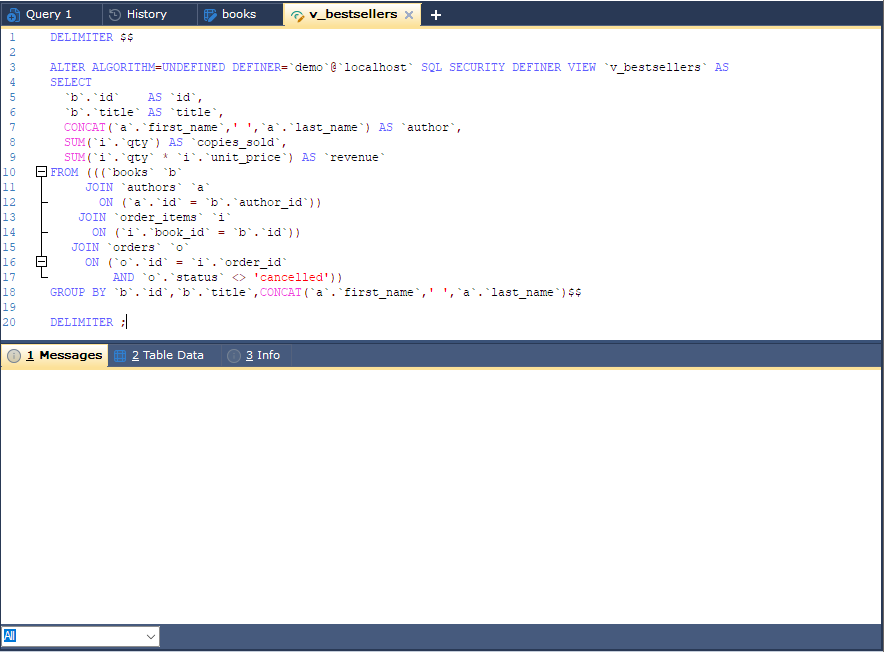
Select the view and choose Others > Views > Alter View… (F6). bonSQL reads the view’s
definition from the server and opens it in a tab as an ALTER ... VIEW statement, with the SELECT laid out
over several lines, between DELIMITER $$ and DELIMITER ;. Edit it and execute the tab.
Other view commands
| Command | Does |
|---|---|
| Drop View… (Del) | Drops the view after asking you to confirm. |
| Rename View (F2) | Lets you type the new name in the Object Browser. |
| Export View… | Opens the export dialog for the view’s rows; see Exporting data. |
| View Data | Shows the view’s rows on the Table Data tab. |
Renaming creates the view again under the new name from its stored definition, then drops the old one. Only
the SELECT is carried over: options such as ALGORITHM and SQL SECURITY are not. Check them with Alter
View afterwards if they matter.
When it does not work
- No view definition found when renaming: the server did not return the view’s definition to you. The
message suggests the usual reason, a view created with
SQL SECURITY DEFINERwhose definer is another user. - The view is created but returns an error when used: a table or column it refers to has been renamed or dropped. Open it with Alter View and correct the query.