
Help Getting started and windows
The query editor
The query editor is the top right part of a connection’s tab. You type SQL there, run it, and read what happened in the result pane below it. A connection can have as many query tabs as you like, each with its own text and its own results.
Ctrl+E moves the keyboard focus to the editor. Ctrl+Shift+3 (Edit > Hide SQL Editor) hides it and shows it again.
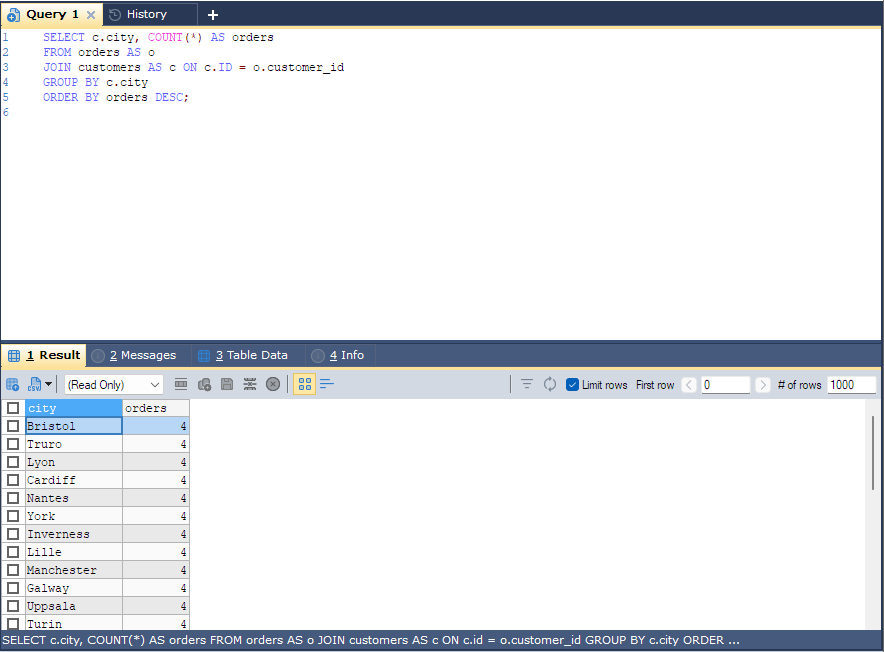
Query tabs
| Keys | Menu | Does |
|---|---|---|
| Ctrl+T | File > New Query Editor | Opens a new query tab. |
| Alt+F2 | File > Rename Tab | Gives the tab a name of your own. |
| Alt+L | File > Close Tab | Closes the tab. |
| Ctrl+PgUp / Ctrl+PgDown | Edit > Switch To Previous Tab / Next Tab | Moves between tabs. |
The + after the last tab opens a menu with New Query Editor, History, Info and Table Data. Right-clicking a tab offers Close and Rename. If a tab has changes that are not saved to a file, bonSQL asks before closing it, unless Prompt if a tab with unsaved changes is closed is unticked in Preferences.
Running queries
| Keys | Menu | Runs |
|---|---|---|
| F9 | Edit > Execute Query > Execute Query | The query the cursor is in. If text is selected, the selected text. |
| Ctrl+F9 | Edit > Execute Query > Execute All Queries | Every query in the tab, one after the other. If text is selected, only the selection. |
| F8 | Edit > Execute Query > Execute And Edit Resultset | The current query, with its result ready for editing; see The Result tab. |
Queries are separated by ;. A script that changes the delimiter with a DELIMITER line, as stored
procedure definitions often do, is split at the new delimiter instead. If the cursor is not inside any
query, nothing runs and the Messages tab says so.
While a query runs, the status bar at the bottom of the window shows Running: and the time so far, updated every second. When it finishes, the status bar shows Exec: (the execution time) and Total: (including fetching the rows). Pressing the same key again while a query runs stops it.
If Switch F5 and F9 functionalities is ticked in Preferences, F5 runs the current query and Ctrl+F5 runs them all, while F9 refreshes the Object Browser.
Explain
EXPLAIN shows how the server plans to run a query: which indexes it uses and how many rows it expects to
read. The simplest way to see it is to type EXPLAIN in front of the query and press F9; the
plan appears on the Result tab like any other result.
Edit > Execute Explain does the same without changing your text: its two items, EXPLAIN
<Query> and EXPLAIN EXTENDED <Query>, run EXPLAIN on the query the cursor is in (or on
the selected text) and show the plan on the Result tab. They are greyed out unless the cursor is in a
SELECT, or in an INSERT, UPDATE, DELETE or REPLACE on MariaDB or on MySQL 5.6.3 and later. bonSQL
greys out EXPLAIN EXTENDED on MySQL 5.7.3 and later, which no longer accept that form.
Editing aids
| Keys | Menu | Does |
|---|---|---|
| Ctrl+Z / Ctrl+Y | Edit > Undo / Redo | |
| Alt+C | Edit > Copy With Normalized Whitespace | Copies the selected text with every run of spaces, tabs and line breaks (outside quoted strings) turned into one space, so it pastes as a single line. |
| Ctrl+F, F3 | Edit > Find…, Find Next | |
| Ctrl+H | Edit > Replace… | |
| Ctrl+G | Edit > Go To… | Goes to a line number. |
| Ctrl+Shift+U / L | Edit > Advanced > Make Selection Uppercase / Lowercase | |
| Ctrl+Shift+C | Edit > Advanced > Comment Selection | Puts -- at the start of each selected line, or of the current line. |
| Ctrl+Shift+R | Edit > Advanced > Remove Comment From Selection | Takes those -- marks away again. |
| Ctrl+Shift+T | Edit > Insert Templates… | Opens a ready-made statement; see SQL templates. |
Right-clicking in the editor shows the Edit menu. A new line starts with the same indentation as the line above. SQL keywords and functions are coloured, and shown in upper case unless you change that under Fonts & Editor Settings in Preferences (the text itself is not changed).
Statements for a table
Select a table in the Object Browser, then use Table > Paste SQL Statement to put a statement for it into the editor at the cursor:
| Keys | Statement |
|---|---|
| Alt+Shift+I | INSERT INTO <tablename>... |
| Alt+Shift+U | UPDATE <tablename> SET... |
| Alt+Shift+D | DELETE FROM <tablename>... |
| Alt+Shift+S | SELECT <col-1>...<col-n> FROM... |
Double-clicking a name in the Object Browser types the name at the cursor; see The Object Browser.
Files and favourites
File > Open… (Ctrl+O) opens an SQL file, File > Save… (Ctrl+S) and Save As… save the tab’s text, and File > Recent Files lists the files used lately. Edit > Insert From File… adds a file’s text to the current tab.
To keep a query you use often without a file, Favorites > Add To Favorites… (Ctrl+Shift+F) stores the tab’s SQL under a name; it is then on the Favorites menu.
Tips
- Select part of a long script and press F9 to run just that part.
- Halt Execution of Queries on Error (General page of Preferences) stops Ctrl+F9 at the first query that fails, instead of carrying on with the rest.
- Keep focus on SQL editor after query execution (also on the General page) leaves the cursor in the editor, so you can edit and run again without reaching for the mouse.