
Help Getting started and windows
The Result tab
When a query returns rows, they appear on a Result tab in the pane below the query editor. A script that returns several result sets gets one Result tab for each. The tabs in that pane are numbered, and Alt+1 to Alt+8 pick one (Alt+9 the last). Ctrl+R moves the keyboard focus to the active tab, and Ctrl+Shift+2 (Edit > Hide Result Pane) hides the whole pane.
If a query fails, the Messages tab is shown instead; see The Messages tab.
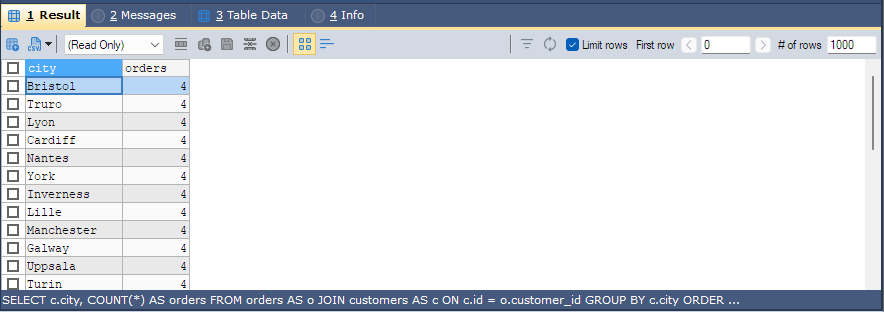
The toolbar
| Button | Does |
|---|---|
| Export as… | Exports all rows to a file (Ctrl+Shift+E); see Exporting data. |
| Copy Data | Copies rows to the clipboard; the arrow beside it lists the choices (see Copying, below). |
| Table list | Shows (Read Only), or a table the result can be edited through; see below. |
| Insert new row | Adds an empty row (Alt+Insert). |
| Duplicate Current Row | Adds a copy of the current row. |
| Save changes / Cancel changes | Writes the changed row to the server, or forgets the change. |
| Delete selected row(s) | Deletes the ticked or current rows, after asking (Alt+Delete). |
| Grid View / Text View | Shows the rows as a grid or as plain text. Ctrl+L switches between them. |
| Filter | Filters the rows; see below. |
| Refresh | Runs the query again (Alt+F5). While it runs, the button becomes Stop. |
Paging
With Enable Autopaging in Result tab ticked on the Others page of Preferences (it
is on unless you change it), a SELECT without its own LIMIT fetches the first Default number of rows
only, 1000 unless you change it. The bar above the grid then controls the paging:
- Limit rows turns the paging on and off for this result.
- First row and # of rows set the window; the arrow buttons move to the previous or next page, and Enter in either box runs the query again with the new values.
Remember setting for each query keeps the number of rows you chose for a query and uses it the next time you run the same query.
A query with its own LIMIT is run as written, and Limit rows is greyed out. It is also greyed out, with
Refresh, for a result that is one of several returned by a single statement, such as a stored procedure
call.
Sorting and filtering
Click a column heading to sort the rows by that column; click again to reverse the order, and a third time to remove the sort. On the Result tab the sorting and filtering happen in bonSQL, on the rows already fetched, one column at a time; the query is not changed. On the Table Data tab they are sent to the server instead. Filtering and sorting data has the details.
Right-click a cell for quick filters on its value (Field = Value, Field <> Value, Field > Value, Field < Value, and three Field Like forms), Custom Filter and Reset Filter. Unsort returns to the order the server sent.
Editing a result
To edit a result, pick the table its rows come from in the table list on the toolbar; (Read Only) turns editing off. F8 in the query editor (Edit > Execute Query > Execute And Edit Resultset) runs the query and picks the first table for you.
- Type in a cell to change it. Moving to another row saves the change; Cancel changes forgets it.
- Columns that do not belong to the chosen table stay read-only.
ENUMcolumns offer a list of their values,SETcolumns a list to tick.- A column with a foreign key has a button that opens a list of values from the referenced table; Ctrl+Space opens it from the keyboard.
- Right-click a cell for Set To NULL, Set To Empty String and Set To Default.
With “smart” KEYWORDS/FUNCTIONS/DEFAULTS handling ticked (Others page of Preferences, on unless you
change it), typing DEFAULT, a function such as NOW() or a value such as CURRENT_TIMESTAMP into a cell
sends it to the server as SQL rather than as text. To store the word itself, put it in backquotes:
`NOW()`. Typing NULL always stores NULL; with the option ticked, `NULL` in backquotes stores
the word.
If an UPDATE or DELETE would change several identical rows, bonSQL asks first, unless Prompt if
multiple rows are getting updated is unticked in Preferences.
Long text, BLOB and JSON values
Cells of TEXT, BLOB and JSON columns have a small button that opens the Insert/Update Blob/JSON
Field window. It shows the whole value on a Text tab (with an Image tab too, except for JSON). Its
buttons Import From File… and Save To File… load the value from a file or write it to one, and
ticking Set Null stores NULL instead. OK keeps your changes; Size: at the bottom shows how big the
value is.
Syntax: colours the text as JSON, XML, HTML, CSS, SQL or Markdown, or None. bonSQL guesses from the value (JSON and XML/HTML are recognised) and remembers your choice for each column. Format lays out JSON or XML neatly; if the text does not parse, it says so.
Copying
Right-click the grid and open Copy for Copy Cell Data To Clipboard, Copy All Rows To Clipboard… and Copy Selected Row(s) To Clipboard…. Duplicate Current Row is on the same menu.
Tips
- Retain user modified column width (Others page of Preferences) keeps column widths you set by hand.
- Truncate column headers to maximum data size makes columns no wider than their data, so more fit on the screen.
- In Text View, Ctrl+F finds text in the result.
- The line under the grid shows the query the rows came from.
- The grid’s font is the Others font under Fonts & Editor Settings in Preferences.