
Help Getting started and windows
Preferences
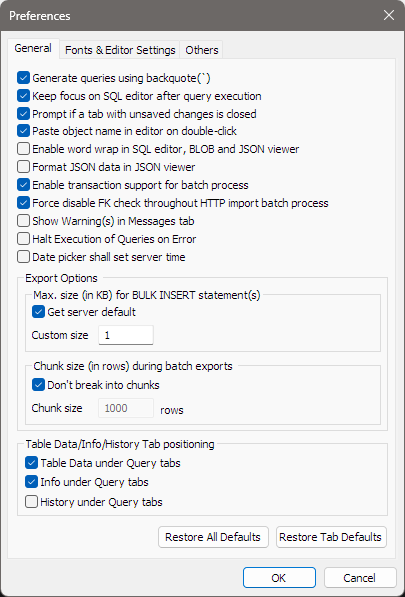
Tools > Preferences… holds the settings that apply to bonSQL as a whole, on three pages: General, Fonts & Editor Settings and Others. Each page is shown below, followed by what its options do. Settings for a single connection are in the Connect dialog instead; see Connecting to a server.
Click OK to keep your changes or Cancel to forget them. On each page, Restore Tab Defaults puts that page back to bonSQL’s defaults and Restore All Defaults does it for all three pages. The dialog opens on the page you used last.
bonSQL keeps the preferences in bonsql.ini in %APPDATA%\bonSQL, or in the folder given with -dir; see
Getting started.
General
| Option | Default | Does |
|---|---|---|
| Generate queries using backquote(`) | On | Puts backquotes round names in the statements bonSQL writes and the names it pastes, such as `order`. |
| Keep focus on SQL editor after query execution | On | Leaves the cursor in the query editor after a run. |
| Prompt if a tab with unsaved changes is closed | On | Asks before closing a query tab whose text is not saved. |
| Paste object name in editor on double-click | On | Double-clicking a name in the Object Browser types it into the editor; off, it opens the table’s data. |
| Enable word wrap in SQL editor, BLOB and JSON viewer | Off | Wraps long lines instead of scrolling sideways. |
| Format JSON data in JSON viewer | Off | Lays out JSON values neatly when they open in the field viewer. |
| Enable transaction support for batch process | On | Runs Execute SQL Script and Copy Database inside a transaction. |
| Show Warning(s) in Messages tab | Off | Lists each warning in full on the Messages tab; see The Messages tab. |
| Halt Execution of Queries on Error | Off | Stops Execute All Queries at the first error. |
| Check for new versions once a week | Off | Reads one small file from bonsql.org when bonSQL starts, at most once every seven days, and only speaks up when a newer version is there; see Checking for updates. |
| Date picker shall set server time | Off | The date picker in a grid starts at, and its NOW button fills in, the server’s current date and time instead of the computer’s. |
Export Options are used when bonSQL writes an SQL dump or copies a database or table:
| Option | Does |
|---|---|
| Max. size (in KB) for BULK INSERT statement(s) | Limits the size of each multi-row INSERT that bonSQL writes. With Get server default ticked (the default), bonSQL keeps each statement within the server’s own limit (max_allowed_packet); untick it to enter a Custom size in KB. |
| Chunk size (in rows) during batch exports | Don’t break into chunks (on by default) reads each table in one go; untick it to read Chunk size rows at a time (1000 by default). |
Table Data/Info/History Tab positioning decides where those three tabs appear. Ticked, the tab is part of the result pane of each query tab; unticked, it opens as a tab of its own beside the query tabs. Table Data under Query tabs and Info under Query tabs are on by default, History under Query tabs is off.
Fonts & Editor Settings
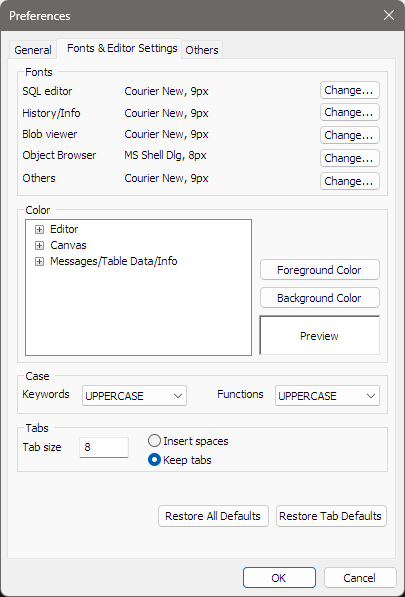
Fonts: each line shows the current font; Change… picks another.
| Font | Used for |
|---|---|
| SQL editor | The query editor. |
| History/Info | The History and Info tabs. |
| Blob viewer | The field viewer for long text, BLOB and JSON values. |
| Object Browser | The tree on the left. |
| Others | The Messages tab and the grids of the Result and Table Data tabs. |
Color: open a branch of the tree with +, pick an item, then click Foreground Color or Background Color; Preview shows the result. Under Editor are the parts of the query editor: Default, Comments, Strings, Functions, Keywords, Number, Operator, Hidden Command, Line Number Margin, Folding Margin, Text Selection, Braces Match and Braces UnMatch. Messages/Table Data/Info sets the text and background colours of those tabs, and Text Selection under it their selection colour. With the Dark theme chosen, the colour buttons are greyed out, because the theme sets the colours.
Case: how Keywords and Functions are shown in the editor: UPPERCASE (the default), lowercase or Unchanged. Only the display changes; the text you typed, and what is sent to the server, stays as it is.
Tabs: Tab size (8 by default), and whether the Tab key types spaces (Insert spaces) or a tab character (Keep tabs, the default).
Others
Miscellaneous
| Option | Default | Does |
|---|---|---|
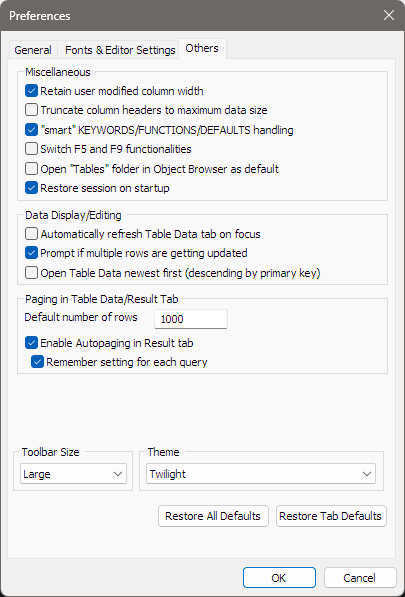
| Retain user modified column width | On | Keeps grid column widths you set by hand. |
| Truncate column headers to maximum data size | Off | Makes grid columns only as wide as their data, even if the heading is cut. |
| “smart” KEYWORDS/FUNCTIONS/DEFAULTS handling | On | In a grid, DEFAULT, NULL, function calls such as NOW() and CURRENT_TIMESTAMP are sent as SQL, not text; see The Result tab. |
| Switch F5 and F9 functionalities | Off | Makes F5 run queries and F9 refresh the Object Browser. |
| Open “Tables” folder in Object Browser as default | Off | Opens a database’s Tables folder as soon as you open the database. |
| Restore session on startup | On | Reopens, at start-up, the connections and query tabs that were open when bonSQL was last closed. The Connect dialog then does not open by itself. |
Data Display/Editing
| Option | Default | Does |
|---|---|---|
| Automatically refresh Table Data tab on focus | Off | Reloads the Table Data tab each time you come back to it. |
| Prompt if multiple rows are getting updated | On | Asks before an edit in a grid changes or deletes several identical rows. |
| Open Table Data newest first (descending by primary key) | Off | Opens Table Data sorted by the primary key, highest first, so the latest rows are at the top. Tables without a primary key use their first unique index, and tables with neither open as usual. A sort you choose yourself still wins. |
During a session, the Table Data tab also remembers the sort and filter you last used on each table and applies them again when you reopen it. Nothing of this is saved when bonSQL closes.
Paging in Table Data/Result Tab
| Option | Default | Does |
|---|---|---|
| Default number of rows | 1000 | How many rows a page holds. |
| Enable Autopaging in Result tab | On | Fetches a SELECT without its own LIMIT one page at a time. |
| Remember setting for each query | On | Remembers the page size you chose for each query. |
Toolbar Size sets the main toolbar’s icons to Small, Normal or Large (the default). Theme chooses the colour theme of the whole window: Default, Flat, Twilight or Dark.