
Help Getting started and windows
The Object Browser
The Object Browser is the tree on the left of each connection’s tab. It shows the server at the top, the databases under it and, inside each database, its objects in folders. Most of what you can do to an object starts here: select it, then use a menu or a key, or right-click it.
Ctrl+B moves the keyboard focus to the Object Browser. Ctrl+Shift+1 (Edit > Hide Object Browser) hides it and shows it again.
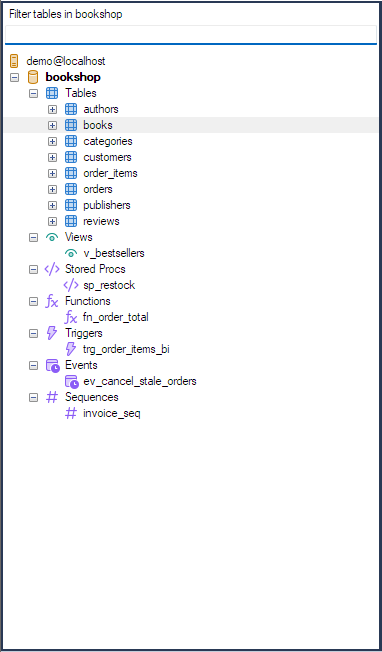
What the tree shows
| Level | Shows |
|---|---|
| Server | The connection, with its databases under it. |
| Database | One for each database you may use. If the connection’s Database(s) field lists some databases, only those appear; see Connecting to a server. |
| Folders | Tables, Views, Stored Procs, Functions, Triggers, Events (on servers that have events) and Sequences (on MariaDB servers that have sequences). |
| Table | Its Columns and Indexes folders. |
Open “Tables” folder in Object Browser as default, on the Others page of Preferences, opens the Tables folder as soon as you open a database.
F5 (Edit > Refresh Object Browser) reloads the tree. If Switch F5 and F9 functionalities is ticked in Preferences, refresh is F9 instead. Edit > Collapse All in Object Browser (Shift+-) closes every open branch.
Right-click menus
Right-clicking an item shows the menu for that kind of item:
| Item | Menu |
|---|---|
| Server | Refresh Object Browser, Collapse All in Object Browser, Create Database…, Execute SQL Script… and Change Object Browser Color… |
| Database | The Database menu: copy, create, alter, drop, truncate or empty the database, create objects in it, back it up, run a script into it, or make an HTML schema of it. |
| Tables folder | Create Table, Copy Table(s) To Different Host/Database… and Backup Table(s) As SQL Dump… |
| Table | The Table menu: paste SQL statements for it, open, create, alter, rename, truncate or drop it, manage its indexes and foreign keys, export, import, and create a trigger. |
| Column, index, view, procedure, function, trigger, event, sequence | The matching part of the Others menu: create, alter, drop and, where it applies, rename. |
Keys
With an item selected in the tree:
| Keys | Does |
|---|---|
| Enter | On a table, opens its rows on the Table Data tab. On a database or folder, opens it and selects its first item. |
| Shift+Enter | On a table, shows the table’s properties. |
| F4 / F6 | Create / alter the selected kind of object. |
| F2 | Renames a table, view, trigger, event or sequence. |
| Insert | On a table, pastes an INSERT statement for it into the query editor. On a database, starts a new table. |
| Delete | Drops the selected database, table, column, index or other object, after asking. |
| Shift+Delete | Truncates the selected table or database, after asking. |
| Ctrl+Up | Goes to the top of the tree. |
| Tab | Moves to the filter box. |
Double-clicking
With Paste object name in editor on double-click ticked (the General page of Preferences; it is on
unless you change it), double-clicking a name types it into the query editor at the cursor. With
**Generate queries using backquote()** also ticked, the name is pasted inside backquotes, such as `` customers` ``.
With that option off, double-clicking a table or view opens its rows on the Table Data tab; hold Ctrl to open them in a new tab.
The filter box
The box above the tree narrows the list to names that contain what you type, anywhere in the name and
regardless of case. What it filters depends on where you are in the tree, and the label above the box says
which: Filter Databases at the server level, or, for example, Filter tables in bookshop when a table
or the Tables folder of the bookshop database is selected (likewise Filter views in, Filter
procedures in and so on). Each level keeps its own filter.
- Ctrl+Shift+B moves to the filter box from anywhere.
- Typing a letter or digit while the tree has the focus starts a filter with that character.
- Esc clears the filter and shows everything again.
Colours and font
Edit > Change Object Browser Color (also on the server’s right-click menu and on the connection tab’s right-click menu) sets a Background Color and a Foreground Color for this connection’s tree. The connection’s tab at the top of the window takes the same colours, and they are saved with the connection: they are the same two settings as on the Advanced tab of the Connect dialog; see Advanced connection settings. Colouring production servers red and test servers green is a simple guard against running a statement on the wrong one.
The tree’s font is set under Fonts & Editor Settings > Object Browser in Preferences.
When it does not show what you expect
- A new table or database is missing. Press F5 (or F9 if the keys are switched) to reload the tree from the server.
- A database is still missing. Clear the filter box with Esc, and check the connection’s Database(s) field. If neither explains it, the user may have no rights on that database: the tree shows what the server lists for the user.
- Keys do nothing. The tree ignores keys while a query is running on that connection.