
Help Import, export and backup
Importing CSV data
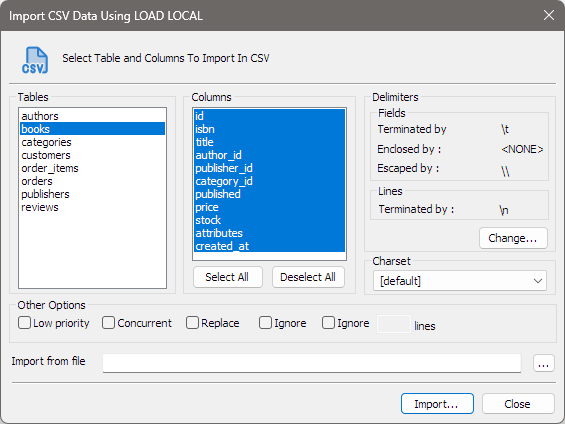
Import CSV Data Using LOAD LOCAL loads a text file of rows, such as a CSV file saved from a
spreadsheet, into an existing table. bonSQL builds a LOAD DATA LOCAL INFILE statement from your choices
and runs it on the current connection, so the file is read from your computer, not from the server.
The table must exist already. To make one, see Creating a table.
Opening it
Select the table, or its database, in the Object Browser, then:
- Table > Import > Import CSV Data Using LOAD LOCAL…
- Ctrl+Shift+M
Tables and Columns
Tables lists the tables of the database, with the one selected in the Object Browser chosen. Columns lists its columns. Select the columns the file’s fields go into (a click selects or deselects one column); only those are named in the statement, in the order they are listed, so the file’s fields must come in that order. Select All and Deselect All help with long lists.
Delimiters
The Delimiters box shows how the file will be read: fields Terminated by, Enclosed by and
Escaped by, and lines Terminated by. Unless you change them, they are \t (tab), <NONE>, \\
and \n.
Click Change… to set them in the Specify The Escape Characters window. Each setting has a tick box in front of it; untick it to leave that part out of the statement. Click OK when done.
| Field | Does |
|---|---|
| Escaped by | The character that comes before special characters inside values. |
| Lines terminated by | What ends each row: \n, or \r\n for a file made on Windows. |
| Fixed length / Variable length | Fixed length reads fields by the columns’ widths instead of by separators. |
| Fields terminated by | The separator between fields, for example ,, ; or \t. |
| Fields enclosed by | The character around values, usually ". Tick Optionally when only some values have it. |
| Fill Excel Friendly Values | Sets fields separated by , and enclosed in ", escaped by \\, with lines ending \r\n. |
Charset
The character set the file is written in. When you choose the file, bonSQL looks at its start: it picks
ucs2 for a UTF-16 file and utf8 for UTF-8 text it recognises, and otherwise leaves the list on
[default]. With [default] bonSQL adds no CHARACTER SET to the statement, so the server’s own
default applies. Change it if accented letters come out wrong.
Other Options
Each option adds a word to the statement. What it does is up to the server; in short, Replace and Ignore decide what happens to a row whose key is already in the table.
| Option | Adds |
|---|---|
| Low priority | LOW_PRIORITY |
| Concurrent | CONCURRENT. Cannot be combined with Low priority. |
| Replace | REPLACE |
| Ignore | IGNORE. Cannot be combined with Replace. |
| Ignore n lines | IGNORE n LINES: skips the first n lines, such as a line of column names. |
Running it
Enter the file in Import from file, or click … to choose it, then click Import…. The table named in Tables receives the rows. When the server has finished, a window titled CSV Import Result shows the server’s summary of the load (how many records were read, deleted, skipped, and how many warnings there were). If there were warnings, click Show Warnings… to read them.
bonSQL remembers the file name and the options for next time.
Tips
- For a CSV file saved from Excel, start with Fill Excel Friendly Values, then tick Ignore and
enter
1lines for the heading row. - Try a few rows first and read Show Warnings… before loading a large file.
- To load an SQL file instead, use Running an SQL script.
When it does not work
- The server refuses the statement: the server must allow
LOAD DATA LOCAL. If it does not, it refuses the statement and bonSQL shows the server’s message; ask the server’s administrator. - Everything lands in the first column: Fields terminated by does not match the file.
- Please specify a filename or Select at least one field: Import from file is empty, or no column is selected.