
Help Data
Filtering and sorting data
You can sort and filter the rows in the Table Data tab by clicking, without writing a query. bonSQL
adds the matching ORDER BY and WHERE clauses to the SELECT it sends, so the server does the work,
and Limit rows applies to the sorted, filtered rows.
In the Result tab the same clicks sort and filter only the rows already fetched, on one column at a time, and nothing is sent to the server.
Sorting
Click a column heading to sort by that column. Each click moves it on one step:
| Click | Order |
|---|---|
| First | Ascending |
| Second | Descending |
| Third | Not sorted by this column |
A plain click replaces the current sort. Hold Ctrl while clicking to add the column to the sort instead; the Table Data tab sorts on up to five columns. To remove every sort at once, right-click a cell and choose Unsort.
If you have not sorted a table yourself and Open Table Data newest first (descending by primary key) is ticked on the Others tab of Tools > Preferences, bonSQL sorts it by its primary key, highest first.
Quick filters from a cell
Right-click a cell and open Filter. The menu offers conditions built from that cell’s value, shown as
they will be applied, for example `city` = 'Lyon':
| Item | Keeps rows where the column |
|---|---|
| Field = Value | equals the value (IS NULL if the cell is NULL) |
| Field <> Value | differs from the value (IS NOT NULL if the cell is NULL) |
| Field > Value / Field < Value | is greater or smaller than the value |
| Field Like %Value | ends with the value |
| Field Like Value% | starts with the value |
| Field Like %Value% | contains the value |
The menu shows at most the first 20 characters of the value. Quick filters are not offered for BIT, JSON and spatial columns, or for binary data.
The Custom Filter dialog
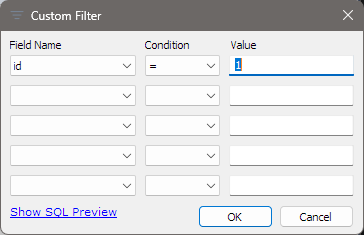
For anything else, click the Filter button (the funnel icon to the left of Refresh on the tab’s toolbar), or right-click a cell and choose Filter > Custom Filter. Each row of the dialog is one condition:
| Field | What to choose |
|---|---|
| Field Name | The column. BIT and spatial columns are not listed. |
| Condition | =, <>, >, < or LIKE. |
| Value | The value to compare with, at most 256 characters. |
There are five rows, and every filled row must match (they are joined with AND). Click OK to apply
the filter. With LIKE, put %
at the start, the end or both, as in SQL. With = or <>, the value NULL (or (NULL)) becomes
IS NULL or IS NOT NULL. Quotes in a value are escaped for you.
In the Table Data tab, Show SQL Preview shows the SELECT that the filter will send; it is updated as
you move from field to field.
Removing a filter
While a filter is on, the Filter button shows a different picture, and its tooltip shows the condition. Click the button once to remove the filter, or right-click a cell and choose Filter > Reset Filter.
Kept for the session
bonSQL remembers the sort and filter of each table while it runs, separately for each connection tab and database. Go to another table and back, and the rows come back sorted and filtered as you left them, with the Filter button showing that a filter is on. Nothing is written to disk, so after a restart every table opens unsorted and unfiltered.
When it does not work
- Filter is greyed out while a query runs in the tab. Wait for it to finish, or click Refresh, which acts as Stop while a query runs.
- If a filter returns no rows, hover over the Filter button to read the condition, or open the dialog
and use Show SQL Preview. A stray space or
%in Value is easy to miss.