
Help Getting started and windows
Getting started
Installing
bonSQL runs on Windows 10 and 11, 64-bit. Run the installer from the download page. If the Microsoft Visual C++ 2015-2022 Redistributable (x64) is not on the computer yet, the installer offers Microsoft’s download for it.
The first start
bonSQL keeps its settings, saved connections and favourites in %APPDATA%\bonSQL. On the very first start,
if SQLyog has been used on the same Windows account, bonSQL asks:
Import SQLyog’s connections, favorites and settings into bonSQL?
Answer Yes to copy them across; saved passwords come with them. SQLyog’s own files are only copied, never changed, so both programs can stay installed. Answer No to start with no saved connections; bonSQL does not ask again.
Connecting
The Connect dialog opens at start-up. (If Restore session on startup is ticked in Preferences, as it is unless you change it, bonSQL instead reopens the connections that were open when you last closed it, and the dialog does not appear.) To open the dialog at any time, press Ctrl+M or choose File > New Connection….
- Click New… and give the connection a name, such as the server’s purpose, then click OK.
- On the Server tab, enter the server’s address, your user name, the password and the port. A new
connection starts with
localhost,rootand 3306; change whatever does not match your server. - If the server is only reachable through SSH, fill in the SSH tab; if it needs an encrypted connection, tick Use SSL Encryption on the SSL tab.
- Click Test Connection to check the details, then Connect. If you have not clicked Save, bonSQL asks whether to save the changes; answer Yes.
Once saved, the details are kept under the name you gave, so next time you only pick the name from Saved Connections and click Connect. Connecting to a server describes every field.
You can have several connections open at once; each opens in its own tab along the top of the window. Ctrl+Tab moves between them, Ctrl+N (File > New Connection Using Current Settings) opens a second connection with the current one’s details, and Ctrl+W (File > Disconnect) closes the current one.
The main window
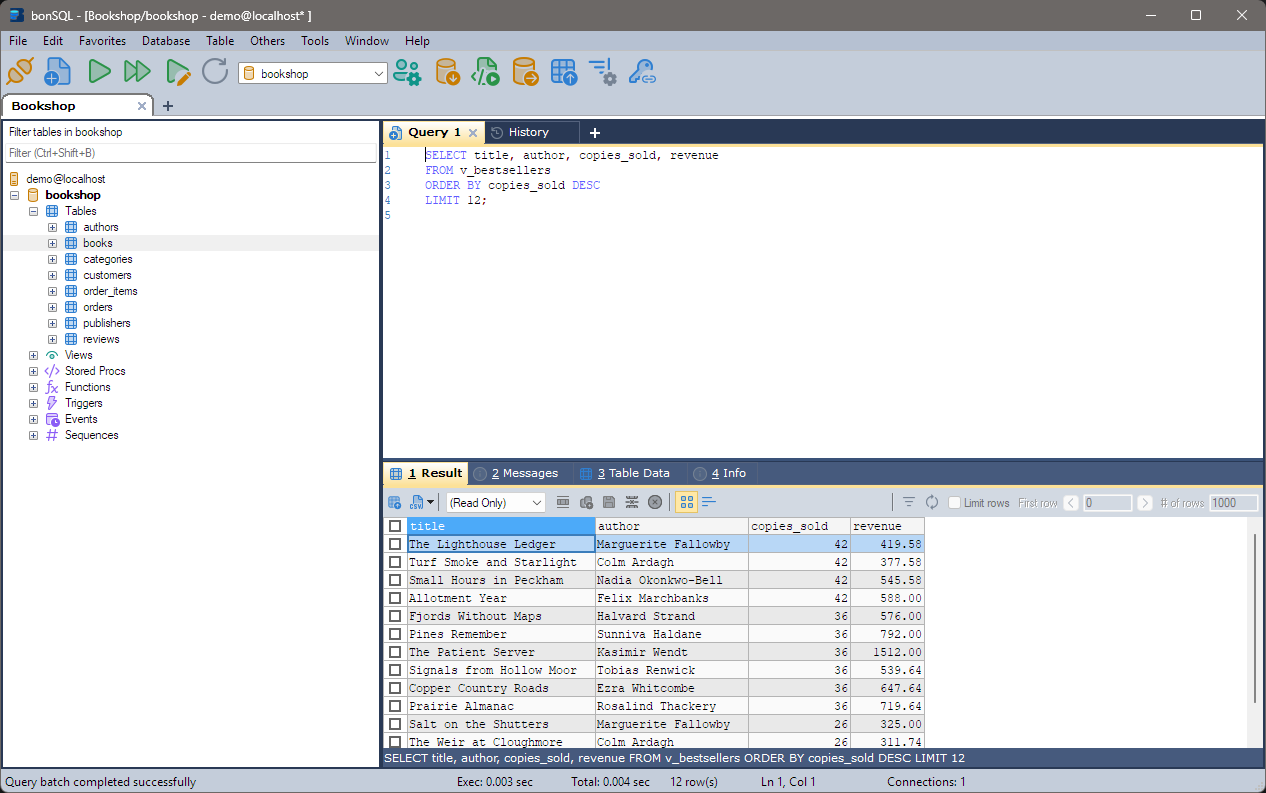
- Object Browser, on the left: the server’s databases and, inside each, its tables, views, stored procedures, functions, triggers and events. Right-click anything for what you can do with it.
- Query editor, top right: type SQL here. Press F9 to run the query the cursor is in, or Ctrl+F9 to run every query in the tab. Ctrl+T opens another query tab. The History tab beside the query tabs logs every statement sent to the server. See The query editor.
- Result pane, bottom right: the Result tab shows the rows a query returned, the Messages tab says what each query did, and Table Data and Info show the table selected in the Object Browser. See The Result tab and The Messages tab.
- Status bar, at the bottom: how long the last run took (Exec: and Total:), the number of rows, and the cursor’s line and column.
Useful keys
| Keys | Does |
|---|---|
| F9 | Run the query under the cursor |
| Ctrl+F9 | Run all queries in the tab |
| F8 | Run the query and edit its result |
| F5 | Refresh the Object Browser |
| F11 | Open the selected table’s rows on the Table Data tab |
| F4 / F6 | Create / change the selected kind of object |
| Ctrl+D | Create a database |
| Ctrl+U | User Manager |
| Ctrl+Alt+E | Back up as an SQL dump |
If Switch F5 and F9 functionalities is ticked in Preferences, F5 and F9 swap roles. Help > Keyboard Shortcuts… lists the rest.
A portable or separate set of settings
Starting bonSQL with -dir "<folder>" makes it keep its settings in that folder instead of
%APPDATA%\bonSQL. This is useful for a copy on a USB stick, or to keep a test set of connections apart
from your everyday ones:
bonSQL.exe -dir "D:\bonSQL-settings"