
Help Connecting
Exporting and importing connections
bonSQL can copy saved connections into a file and read them back, on the same computer or another one. Use it to set up a new computer, to give colleagues the connections they need, or to keep a copy of your list.
Both commands are under Tools > Export/Import Connection Details.
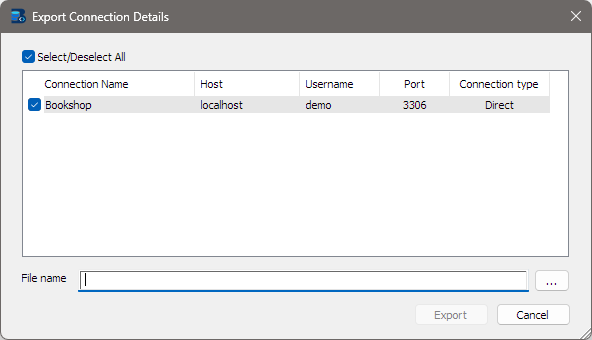
Exporting
Choose Export Connection Details…. The dialog lists your saved connections with their Host, Username, Port and Connection type (Direct, SSH or SSL; a connection that uses both SSH and SSL shows SSH).
- All connections start ticked; untick the ones to leave out. Select/Deselect All ticks or clears them all.
- Enter the File name, or click … to choose it. bonSQL adds
.sycsif the name does not end with it. If the file exists, bonSQL asks before replacing it. - Click Export. It stays greyed out until at least one connection is ticked and a file name is given. The line at the bottom names each connection as it is copied, and bonSQL says Connection(s) exported successfully. at the end.
What the file contains
Each connection is copied whole, with every setting on its Server, SSH, SSL and Advanced
tabs, exactly as it is stored in bonsql.ini. That includes saved passwords, in the same scrambled form
bonSQL keeps them in. They are not readable at a glance, but anyone who imports the file into bonSQL can
connect with them. Treat the file like a list of passwords: do not email it or leave it in a shared
folder. To share connections without passwords, untick Save Password on a copy first (see
Connecting to a server).
Some things are not in the file:
- Key and certificate files. An SSH private key or SSL certificate is stored as a path to the file. Copy the files too, and correct the paths if they are in a different place on the other computer.
- Trusted SSH host keys. These are kept apart from the connections, so the first connection through each SSH server asks you to confirm its fingerprint again; see Connecting through an SSH tunnel.
Importing
Choose Import Connection Details….
- Click Open File… and choose a
.sycsfile. Its connections are listed, all ticked. - Untick any you do not want.
- Click Import. bonSQL says Connection(s) imported successfully. at the end.
While an export or import runs, its button reads Stop, to cancel the rest.
When a name is already taken
If an imported connection has the same name as one you already have, bonSQL asks what to do:
| Button | Does |
|---|---|
| Keep Both | Imports it under a new name with a number added, such as Production_(1). |
| Replace | Overwrites your existing connection with the imported one. |
| Skip | Leaves your connection as it is and does not import this one. |
| Cancel | Stops the import. Connections already imported stay. |
Tick Do this for remaining conflicts to give the same answer for every later clash in this import.
From SQLyog
To bring over connections from SQLyog on the same Windows account, you do not need this: bonSQL offers to
import SQLyog’s connections the first time it starts; see Getting started.
Importing a .sycs file exported from SQLyog has not been checked.
When it does not work
| Message | Usually means |
|---|---|
| Invalid File! | The file is not a connection file, or holds no connections. |
| Could not open file. | The file cannot be read or written there. Choose another folder. |
| No Connection Detail Selected for Export | Nothing is ticked in the list. |