
Help Import, export and backup
Exporting data
Export As saves rows to a file for use in other programs: a spreadsheet, a web page, another application. To back up a database so it can be rebuilt, use an SQL dump instead.
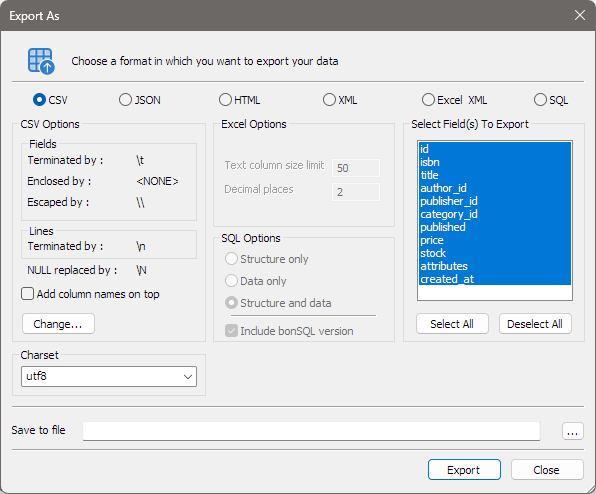
Opening it
| From | What is exported |
|---|---|
| Table > Backup/Export > Export Table Data As… (Ctrl+Alt+C) | Every row of the table selected in the Object Browser. |
| The Export as… button (the first one on the toolbar) of the Table Data or Result tab, or Tools > Export All Rows Of Table Data/Result As… (Ctrl+Shift+E) | The rows the tab holds, so Limit rows and any filter apply. A new row that is not saved yet is left out. |
Choosing the format
| Format | Gives |
|---|---|
| CSV | Text with one row per line, with the separators set under CSV Options. |
| JSON | The rows as JSON. Numbers are written without quotes. |
| HTML | A web page with the rows in a table. |
| XML | The rows as XML elements. |
| Excel XML | A spreadsheet in Excel’s XML format, with the settings under Excel Options. |
| SQL | INSERT statements, and optionally the CREATE TABLE, with the settings under SQL Options. |
When you change the format, bonSQL changes the extension of the file name to match.
BIT columns are written as numbers in CSV, JSON, HTML, XML and Excel XML, for example 5 for b'101'.
CSV Options
The box shows the current separators: fields Terminated by, Enclosed by and Escaped by, lines
Terminated by, and what NULL is replaced by. Unless you change them, they are \t (a tab),
<NONE>, \\, \n and \N.
Add column names on top writes a first line of column names.
Click Change… to set them in the Specify The Escape Characters window. Each setting has a tick box in front of it; untick it to leave that part out. Click OK when done.
| Field | Does |
|---|---|
| Escaped by | The character put before special characters inside values. |
| Lines terminated by | What ends each row, for example \r\n for Windows. |
| Fixed length / Variable length | Fixed length pads every value to the column’s width instead of using separators. It does not support BLOB and TEXT columns; bonSQL warns and asks whether to go on. |
| Fields terminated by | The separator between values, for example , or \t for tab. |
| Fields enclosed by | The character put around values, usually ". With Optionally, only CHAR, VARCHAR, ENUM and SET values are enclosed. |
| NULL value replaced by | What to write for NULL. |
| Fill Excel Friendly Values | Sets comma-separated values enclosed in ", escaped by \\, lines ending \r\n and NULL as \N. |
Excel Options
Text column size limit and Decimal places control how long text and decimal numbers are written to the sheet.
SQL Options
Structure only, Data only or Structure and data, and Include bonSQL version for a comment naming bonSQL at the top. bonSQL reminds you that this writes the simplest form of SQL, without indexes, character sets or comments. From the Result tab, SQL is only offered when the query reads from one table.
Columns, character set and file
- Select Field(s) To Export lists the columns; all are selected to start with. Select All and Deselect All help with long lists.
- Charset sets the character set of CSV and Excel XML files: utf8 to start with, utf8 with BOM, or one of the other character sets in the list.
- Save to file is the file to write. Click … to choose it. If the file exists, bonSQL asks before overwriting it.
Click Export. The dialog counts the rows as they are written, and the button reads Stop until it finishes. At the end, bonSQL offers to open the file (for SQL it only says that the export succeeded).
Copying instead of saving
To paste rows straight into another program, use the Copy Data button on the Table Data or Result tab, or right-click and choose Copy for one cell, all rows, or the selected rows.
When it does not work
| Message | Usually means |
|---|---|
Please specify a file name | Save to file is empty. |
Please select at least one column | No column is selected in Select Field(s) To Export. |
Could not create file | The folder does not exist, the file is open in another program, or you may not write there. |
Fixed-length CSV is not supported for BLOB and TEXT columns. Do you still want to continue? | Answer No, then choose Variable length under Change…, or leave those columns out. |