
Help Import, export and backup
Running an SQL script
Execute SQL Script runs every statement in a file against the current connection, without loading the file into the query editor. Use it to restore an SQL dump, or to run a long script that would be slow or awkward in the editor.
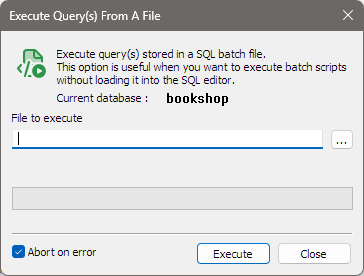
Opening it
- Database > Execute SQL Script (import)…
- Tools > Execute SQL Script…
- Ctrl+Shift+Q
The dialog is called Execute Query(s) From A File.
Running a file
- Check Current database. Statements run there unless the file has its own
USEstatements. A dump made with Include “USE database” statement switches database by itself. - Enter the file in File to execute, or click … to choose it. The file is remembered for next time.
- Leave Abort on error ticked to stop at the first statement that fails, or untick it to carry on past errors.
- Click Execute.
If a database is selected in the Object Browser, bonSQL first asks you to confirm:
The current database context is
shop. SQL statements in the file will be executed here, unless one or more USE statement(s) specifying another database context is in the file. Do you want to continue?
While it runs, the bar shows how much of the file has been read and the button reads Stop. At the end, the dialog shows how many statements were run and one of these:
| Message | Means |
|---|---|
| Import successful | Every statement ran. |
| Import successful with error(s) | The file was run to the end, but some statements failed (only with Abort on error unticked). |
| Import unsuccessful | A statement failed and Abort on error stopped the run. |
| Aborted by user | You clicked Stop. |
| Import unsuccessful. Error opening batch file | The file could not be opened. |
When the file has been run to the end, Close changes to Done, and bonSQL refreshes the database in the Object Browser so that new tables show up. After a stopped or aborted run, refresh the Object Browser yourself (Edit > Refresh Object Browser, F5) to see what was created.
The script runs on a connection of its own, so session settings made by the script (such as SET
statements) do not carry over to your query tabs.
The error file
Every statement that fails is written to bonsql.err in %APPDATA%\bonSQL (or in the folder given with
-dir), with the statement itself, the time, the line number in the script, the error code and the
server’s message. New
errors are added to the end of the file; it is never emptied for you.
When Abort on error stops a run, the SQL Dump Import Error dialog says where the file is. Click Open Error File… to open it in Notepad.
Scripts with stored procedures
bonSQL understands DELIMITER lines, as written by a dump or by hand around procedures and triggers.
Comment lines starting with # or -- inside a procedure, function or trigger body are kept and stored
with it on the server; comment lines between statements are skipped.
Transactions
When Enable transaction support for batch process is ticked on the General tab of Tools >
Preferences, bonSQL runs the script inside a transaction (set autocommit=0) and commits it when the
script has run to the end. If the run stops early, through Abort on error or Stop, bonSQL does not
commit, and the uncommitted changes are lost when its connection closes. Statements that the server commits
by themselves, such as CREATE TABLE, are not undone.
Tips
- To see where a long script failed, look at the line number in
bonsql.err, then open the script in the query editor and press Ctrl+G to go to that line. - For a short script, opening it in the query editor (Ctrl+O) and pressing Ctrl+F9 shows each statement’s result in the Messages tab instead.
When it does not work
- Please enter a filename: File to execute is empty.
- Can’t import dump file of size 0.: the file is empty.
- Errors about missing tables on the first statements: the script expected another database. Select the
right database in the Object Browser first, or add a
USEstatement to the script. - Errors about foreign keys while a dump loads: make the dump with Set FOREIGN_KEY_CHECKS=0; see Backing up a database as an SQL dump.