
Help Connecting
Connecting to a server
The Connect to Server dialog is where you tell bonSQL which server to connect to and how. It opens when bonSQL starts (unless bonSQL reopens your last session; see Preferences), and at any time with Ctrl+M (File > New Connection…). It keeps a list of saved connections, each with its own settings on four tabs: Server, SSH, SSL and Advanced.
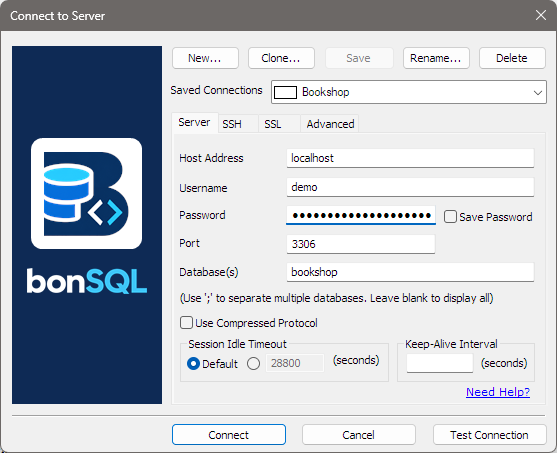
Saved connections
| Button | Does |
|---|---|
| New… | Starts a new connection; you name it first. It starts with host localhost, user root, port 3306 and Use Compressed Protocol ticked. |
| Clone… | Copies the selected connection’s settings under a new name. |
| Save | Saves changes to the selected connection. bonSQL also offers to save when you connect after changing something. |
| Rename… | Renames the selected connection. |
| Delete | Deletes the selected connection, after asking. |
Pick a connection from Saved Connections to load its settings.
The Server tab
| Field | What to enter |
|---|---|
| Host Address | The server’s name or IP address. With an SSH tunnel, the address as the SSH server sees it, often 127.0.0.1. |
| Username | The database user. |
| Password | The user’s password. With Save Password ticked, it is kept with the connection; untick it to keep it out of the saved settings and type it into this box each time you connect. |
| Port | The server’s TCP port, 3306 unless it was changed. |
| Database(s) | Leave blank to see every database you may use, or list the ones you want in the Object Browser, separated by ;. |
| Use Compressed Protocol | Compresses the traffic between bonSQL and the server. It helps over slow links and costs a little processor time on both sides. |
| Session Idle Timeout | How long the server keeps an idle connection open. Default leaves the server’s own setting. To set your own, click the round button next to the box and enter a number of seconds (at most 28800, eight hours; a larger number counts as 28800); bonSQL sets the session’s wait_timeout to it when it connects. |
| Keep-Alive Interval | If you enter a number of seconds, bonSQL pings the server that often while the connection is idle, so that firewalls and the server’s timeout do not drop it. Leave it empty to send nothing. |
Need Help? at the bottom of the Server tab opens this page. To reach a server that only accepts connections from its own network, use an SSH tunnel.
Test Connection and Connect
Test Connection connects with the settings shown, then disconnects and says either Connection successful! with the server’s version, or the error. Connect opens the connection in a new tab of the main window. Cancel closes the dialog without connecting.
When it does not connect
| Message contains | Usually means |
|---|---|
Access denied for user | Wrong user name or password, or the user may not connect from your computer’s address. |
Can't connect to | The address or port is wrong, the server is not running, or a firewall is in the way. |
SSL is required or TLS/SSL error | The server and the SSL settings do not agree; see Connecting with SSL/TLS. |
A message starting SSH: | The SSH tunnel could not be set up; see Connecting through an SSH tunnel. |