
Help Data
Viewing and editing data
The Table Data tab in the result pane shows the rows of the table or view selected in the Object
Browser, and lets you change them without writing SQL. bonSQL turns each change into an INSERT,
UPDATE or DELETE and runs it for you.
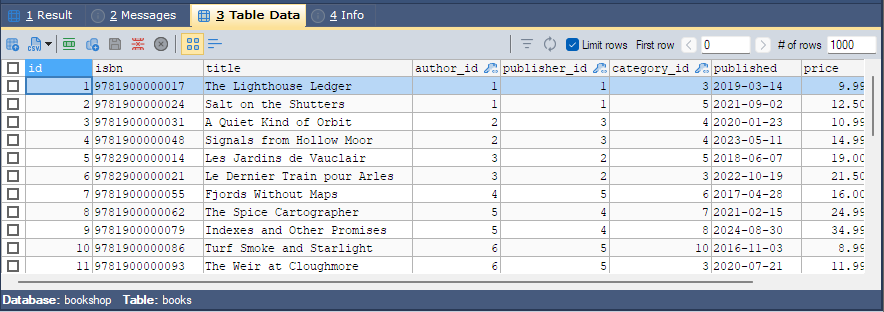
Opening it
Select a table in the Object Browser and click the Table Data tab. Table > Open Table (F11) does the same from the keyboard. Table > Open Table in New Tab (Ctrl+F11) opens the table in a tab of its own, which stays on that table when you select something else in the Object Browser.
The toolbar
The toolbar buttons are icons without text; hover over one to see its name. From left to right:
| Button | Does |
|---|---|
| Export as… (Ctrl+Shift+E) | Opens Export As for the rows in the tab; see Exporting data. |
| Copy Data | Click it to copy all rows to the clipboard; its arrow opens Copy Cell Data To Clipboard, Copy All Rows To Clipboard… and Copy Selected Row(s) To Clipboard…. |
| Insert new row (Alt+Ins) | Adds an empty row to type into. |
| Duplicate Current Row | Adds a copy of the current row, to change before it is saved. |
| Save changes | Saves the changed row now. |
| Delete selected row(s) (Alt+Del) | Deletes the ticked rows, or the current row if none is ticked, after asking. |
| Cancel changes | Throws away changes that are not saved yet. |
| Grid View / Text View | Switches between the editable grid and plain text. Ctrl+L does the same. |
| Filter | See Filtering and sorting data. |
| Refresh (Alt+F5) | Reads the rows again. While a query runs, its tooltip says Stop and clicking it stops the query. |
Most of the same commands are on the menu you get by right-clicking a cell.
To the right are Limit rows, First row and # of rows. With Limit rows ticked, bonSQL reads only # of rows rows, starting at First row; the arrow buttons move a page back or forward. The default page size is Default number of rows on the Others tab of Tools > Preferences (1000 unless you change it). bonSQL remembers the limit, and whether you used the grid or the text view, for each table.
Editing a cell
Click a cell and start typing, or press F2. Some column types get extra help:
- ENUM columns offer a list of their values; SET columns a list where you can tick several.
- DATE, DATETIME and TIMESTAMP columns open a calendar. NOW fills in the current date and time.
- TEXT, BLOB and JSON columns have a small button in the cell that opens the field viewer (below).
- In a column that has a foreign key, a … button appears in the cell while you edit it; click it, or press Ctrl+Space, to pick the value from the referenced table. See Looking up foreign key values.
Right-click a cell for Set To NULL, Set To Empty String and Set To Default. Each is offered only when the column allows it.
When changes are saved
A changed row is saved when you move to another row, or when you click Save Changes. A new row is inserted the same way. If you refresh with unsaved changes, bonSQL first asks Do you want to save the changes?
Deleting rows
To delete several rows, tick the boxes at the start of the rows. Shift-click a second box to tick every row in between, and Ctrl+Space ticks or clears the current row (when no cell is being edited). Then click Delete Selected Row(s) and confirm.
Tables without a primary key
To change or delete a row, bonSQL must tell the server which row you mean. With a primary key that is
simple. Without one, bonSQL uses the first unique index whose columns are all NOT NULL. If there is no
such index either, it matches the row on every column. FLOAT and DOUBLE values are compared the way the
server prints them, so rows with FLOAT columns can be updated and deleted too.
When matching on every column could hit more than one identical row, bonSQL counts them first and asks, for example:
There are 2 duplicates of the row you are trying to update. Do you want to update all the duplicates?
Yes changes all of them, No changes only one, and Cancel changes nothing. To stop the question, untick Prompt if multiple rows are getting updated on the Others tab of Tools > Preferences.
The field viewer
The viewer (Insert/Update Blob/JSON Field) shows long text, JSON and binary values in full.
| Control | Does |
|---|---|
| Text / Image | Shows the value as text, or as a picture. |
| Format | Lays out JSON or XML with line breaks and indentation. If the text is not valid, bonSQL says what is wrong and leaves it alone. Available when Syntax is JSON or XML. |
| Syntax | Colours the text as None, JSON, XML, HTML, CSS, SQL or Markdown. bonSQL guesses from the value (a JSON column, or text starting with {, [ or <) and remembers your choice for that column. |
| Set Null | Makes the value NULL. |
| Import From File… | Replaces the value with the contents of a file. |
| Save To File… | Saves the value to a file. |
| Encoding list | How the text is read: Utf-8, US-ascii/Ansi or UCS2. |
Click OK to put the value back in the grid; it is saved with the row as usual. In a JSON column, bonSQL refuses text that is not valid JSON. To have JSON laid out every time the viewer opens, tick Format JSON data in JSON viewer on the General tab of Tools > Preferences.
Useful preferences
On the Others tab of Tools > Preferences:
- Open Table Data newest first (descending by primary key) shows each table sorted by its primary key, highest first, or by its first unique index if it has no primary key, unless you have sorted it yourself. Off by default.
- Automatically refresh Table Data tab on focus reads the rows again each time you come back to the tab.
Editing a query’s result
Rows a query returns in the Result tab can be edited too. Run the query with F8 (Edit > Execute Query > Execute And Edit Resultset) instead of F9. This also works on a selection: select one query in the editor and press F8 to get an editable result for just that query. See The Result tab.