
Help Tables, columns and indexes
Creating a table
bonSQL creates tables in the table designer, which opens as a tab beside your query tabs. You fill in the columns, add indexes, foreign keys and check constraints if you need them, look at the statement on the SQL Preview tab, and click Save. Nothing is sent to the server before that.
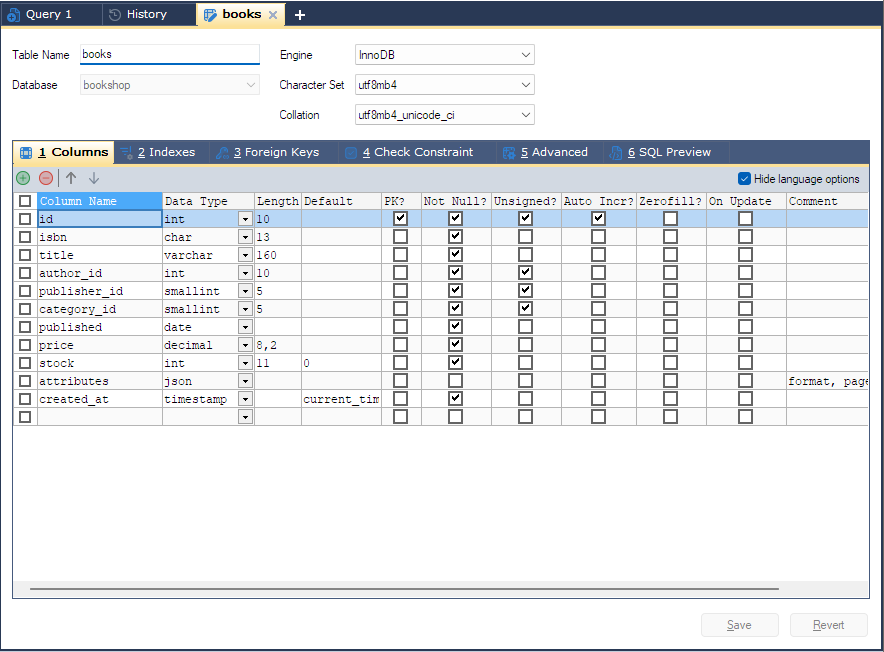
Opening the designer
Select the database, or one of its tables, in the Object Browser, then do one of these:
- press F4 with the database, its Tables folder or one of its tables selected;
- choose Table > Create Table, or Database > Create > Table;
- right-click the Tables folder and choose Create Table.
The new tab is called New Table. Save and Revert, at the bottom right, stay greyed until you enter something.
The top of the designer
| Field | What it does |
|---|---|
| Table Name | The new table’s name, up to 64 characters. |
| Database | The database the table is created in. It starts on the database selected in the Object Browser. |
| Engine | The storage engine. [default] leaves the choice to the server. The list holds the engines the server reports. |
| Character Set / Collation | The table’s default character set and collation. [default] leaves them to the server. Choose a character set first; the collation list follows it. |
Below these are six tabs: 1 Columns, 2 Indexes, 3 Foreign Keys, 4 Check Constraint, 5 Advanced and 6 SQL Preview. Alt+1 to Alt+6 switch between them. Each has its own page in this help; this page covers the Columns tab.
The Columns tab
Each row is one column of the table. A new table starts with six empty rows, and a new row appears when you edit the last one. Columns are created in the order of the rows.
| Grid column | What to enter |
|---|---|
| Column Name | The column’s name. |
| Data Type | Pick from the list. The list depends on the server; see below. |
| Length | The length or precision, written as it goes between the brackets: 100 for varchar(100), 10,2 for decimal(10,2). varchar, varbinary, enum and set must have one. |
| Default | The default value. Type '' for an empty string (allowed for char, varchar, varbinary, enum and set only). |
| PK? | Makes the column part of the primary key. Ticking it also ticks Not Null? and locks it, and adds or updates the PRIMARY index on the Indexes tab. |
| Not Null? | Ticked: the column refuses NULL. Unticked: bonSQL writes NULL. |
| Unsigned? | For numeric types only. |
| Auto Incr? | The column numbers new rows itself. Ticking it empties and locks Default; typing a default locks Auto Incr?. |
| Zerofill? | Pads numbers with leading zeros. For numeric types only. |
| Charset / Collation | The column’s own character set and collation, for text types. Leave them empty to use the table’s. |
| On Update | Sets the column to the current time whenever the row changes (ON UPDATE CURRENT_TIMESTAMP). For timestamp, and for datetime on MySQL 5.6.5 and MariaDB 10.0.1 and later. |
| Comment | A comment stored with the column. |
| Virtuality / Expression | For generated columns; see below. Shown on MySQL 5.7 and later and MariaDB 5.2 and later. |
| Check Constraint | A rule for this column alone, such as price >= 0. bonSQL puts CHECK ( ) round it. For rules over several columns use the Check Constraint tab. |
| Invisible? | Hides the column from SELECT *. Shown on MySQL 8.0.23 and MariaDB 10.3.3 and later. |
| Compressed? | Stores the column compressed. MariaDB 10.3.3 and later only, and only for text and blob types, varchar, varbinary and json; for other types the cell is locked. |
Cells that do not apply to the chosen type are locked and cleared: for example Unsigned? and
Auto Incr? for varchar, and Charset and Collation for timestamp.
Tick Hide language options, above the grid, to hide the Charset and Collation columns. bonSQL remembers the setting.
Data types
The Data Type list always has the classic types, from tinyint to varbinary. bonSQL adds the newer
ones only when the server accepts them:
| Type | Offered on |
|---|---|
json | MySQL 5.7.8 and later, MariaDB 10.2.7 and later |
inet6 | MariaDB 10.5 and later |
uuid | MariaDB 10.7 and later |
inet4 | MariaDB 10.10 and later |
vector | MySQL 9.0 and later, MariaDB 11.7.1 and later. Put the number of dimensions in Length. |
Choosing enum or set opens the Enum/Set window for the list of values: type a value in Enter value
and click Add; Replace, Remove, Up and Down edit the list. Click OK and the values end
up in Length.
Generated columns
To make a column whose value the server works out from other columns, choose VIRTUAL or STORED in
Virtuality (older MariaDB servers show PERSISTENT instead of STORED) and type the formula in
Expression, for example price * qty. bonSQL then clears and locks Default, PK?,
Not Null?, Auto Incr? and On Update, and does not write a column-level check for that column.
Adding, removing and moving rows
The four small buttons above the grid have no labels; hover over them to see what they do. From left to right they are:
| Button | Does |
|---|---|
| green + | Inserts a column above the selected row (Alt+Ins). |
| red - | Deletes the ticked columns (Alt+Del). Tick the box at the start of a row to select it. If no row is ticked, it deletes the row the cursor is in. bonSQL asks before deleting. |
| up arrow | Moves the selected column up (Alt+Up). |
| down arrow | Moves the selected column down (Alt+Down). |
If a column you delete is used by an index or foreign key, bonSQL says so, asks again, and updates those too.
Saving
Click Save. bonSQL checks the grid first and stops with a message if, for example, a column has a name
but no type (Data type not specified), two columns share a name (Duplicate column name), a varchar has
no length, or there are no columns at all. If the server then refuses the statement, its error is shown and
the designer keeps what you entered.
When the table is created, bonSQL asks:
Table created successfully. Do you want to create more tables?
Either way this tab stays open, now as the designer for the table you just made, and further changes go to
the server as ALTER TABLE, described in Changing a table. Yes also
opens another New Table tab.
Revert empties the designer again. Closing the tab with unsaved work asks whether to save it, unless Prompt if a tab with unsaved changes is closed is turned off in Tools > Preferences.
Tips
- Look at the SQL Preview tab before saving. Problems bonSQL can see appear there as comments, such as
/* Table name not specified */; see SQL preview. - Names are written in backquotes, as
`my table`, while Generate queries using backquote(`) is ticked on the General page of Tools > Preferences. - Indexes, foreign keys and table options can all be set before the first save: see Creating an index, Foreign keys and Table options.