
Help Connecting
Connecting through an SSH tunnel
Many database servers only listen on their own network, or only on 127.0.0.1, and are reached by logging
in to a machine on that network with SSH first. bonSQL can do that for you: it opens an SSH connection,
forwards a local port through it to the database server, and connects through the forward. The tunnel
closes when the connection’s tab closes.
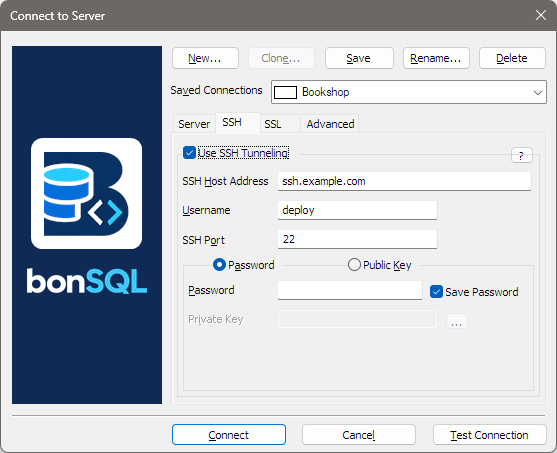
Setting it up
Open the Connect dialog (Ctrl+M) and pick or create the connection. On the SSH tab, tick Use SSH Tunneling; the fields below it then become available. Fill in:
| Field | What to enter |
|---|---|
| SSH Host Address | The machine you log in to with SSH. |
| Username | Your SSH user name on that machine. |
| SSH Port | Usually 22, which is also what bonSQL uses if the box is empty. |
| Password / Public Key | The two round buttons: how you log in. Choose one. |
| Password | With Password chosen, your SSH password. With Public Key chosen, the field is labelled Passphrase and is for the key’s passphrase, if it has one. Save Password (ticked unless you change it) keeps it with the connection, in the same scrambled form as database passwords; untick it to type it each time. |
| Private Key | With Public Key chosen: your key file in PuTTY’s .ppk format. Type the path or click … to choose the file. |
Then, on the Server tab, enter the database server’s address as the SSH machine sees it. If the
database runs on the SSH machine itself, that is 127.0.0.1 (or localhost); if it is another machine on
that network, its address there. The port is the database’s port on that machine, usually 3306.
Keys
bonSQL reads private keys in PuTTY’s .ppk format. To use an OpenSSH key (id_ed25519, id_rsa), open it
in PuTTYgen (part of PuTTY) and save it with Save private key. Keys without a passphrase are known to
work; keys protected by a passphrase have not been tested yet.
The first connection to a new SSH server
The first time bonSQL meets an SSH server, it shows the server’s key fingerprint, such as
SHA256:3Kd..., and asks whether you trust it. Compare it with the fingerprint your administrator gives you
(on the server, ssh-keygen -lf /etc/ssh/ssh_host_ed25519_key.pub shows it). Answer Yes and bonSQL
remembers the key for that server and port.
Answer No (the default) and bonSQL does not connect.
If the server’s key changes later, bonSQL refuses to connect and says so. That is either a reinstalled
server or someone in the middle; check with the administrator. If the change is expected, the message names
the entry to delete from the [SshHostKeys] section of bonsql.ini in %APPDATA%\bonSQL (or in the
folder given with -dir). Close bonSQL, delete that line with a text editor, start bonSQL and connect again
to be asked afresh. If you also use PuTTY with that server, PuTTY keeps its own record of the key, which the
message asks you to clear as well.
What bonSQL uses
The tunnel is made by PuTTY’s plink.exe, which is installed next to bonSQL. If it is missing there,
bonSQL looks in Program Files\PuTTY and then on the PATH.
When it fails
Messages from the tunnel start with SSH: and say what went wrong, for example that the login was refused
or the host could not be reached. A wrong password takes a few seconds to be reported, because the SSH
server pauses before answering a failed login.