
Help Tables, columns and indexes
Changing an index
Existing indexes are changed and dropped on the 2 Indexes tab of the table designer, the same grid used to create them. The grid and the Columns window are described in Creating an index; this page covers what is different for an index that already exists.
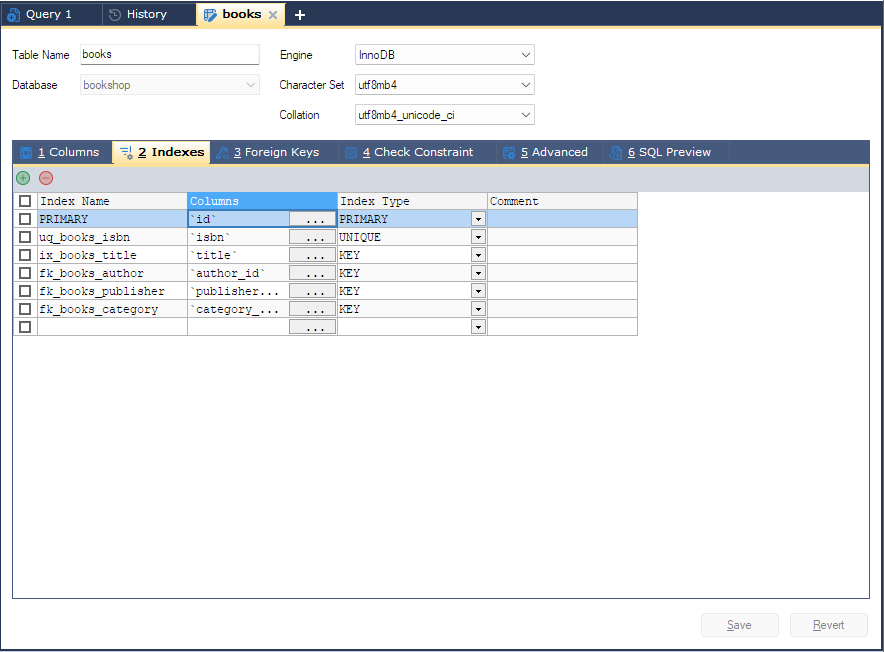
Opening it
- Select the table in the Object Browser and press F7 (Table > Manage Indexes).
- Or expand the table in the Object Browser, open its Indexes folder, right-click the index and choose Edit Index. The same command is on the menu bar as Others > Indexes > Edit Index, and F6 does it from the keyboard.
Either way the table designer opens on the Indexes tab, listing the table’s indexes with their name, columns, type and, where the server has them, visibility and comment.
Changing an index
Edit the cells of the index’s row: rename it in Index Name, change Index Type, or click the … button in the Columns cell to add, remove or reorder its columns or set a prefix Length.
bonSQL does not change an index in place: on Save it drops the old index and adds the new one in the
same ALTER TABLE. Roughly, for an ordinary index:
Alter table `shop`.`orders`
  drop index `ix_customer`,
  add KEY `ix_customer` (`customer_id`, `ordered_at`)
For the primary key it writes drop primary key and add primary key (...).
If you change a row and then put every cell back as it was, bonSQL sees that nothing changed and sends nothing for that index.
On MySQL 8.0.11 and later, the Visibility cell of an existing index can be changed on its own, like any other cell. The primary key’s visibility cannot be changed.
Dropping an index
In the designer: tick the box at the start of the index’s row and click the red - button above the
grid (Alt+Del). bonSQL asks Do you want to drop the selected index(es)?. If no box is
ticked, the button drops the row the cursor is in and asks Do you want to drop this index? instead. The
index is dropped when you click Save (drop index, or drop primary key).
From the Object Browser: right-click the index and choose Drop Index (also Others > Indexes > Drop
Index, or Del). bonSQL asks for confirmation and then drops it straight away with
alter table ... drop index ..., without the designer and without Save.
Things to watch
- Dropping or changing a column on the Columns tab also changes the indexes that use it; bonSQL warns before deleting such a column.
- The designer tab cannot be closed while a save is still running; wait for the result message.
- Revert undoes all unsaved changes on every tab, not only on Indexes.